


Smart Print - Air Printer App
4.42.35K Reviews
App Specs
- Version
- 3.4.1
- Updated On
- License
- Free
- Downloads
- 1,000,000+
- Developer
- MAPLE LABS CO., LTD
- Categories
- Productivity
- Platform
- Android, iOS
Screenshots
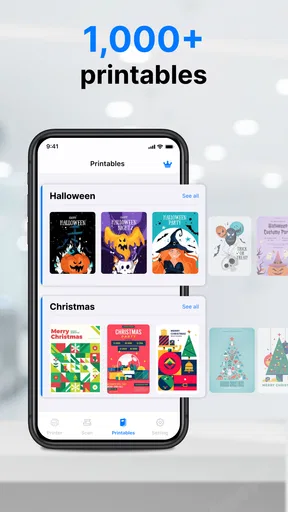
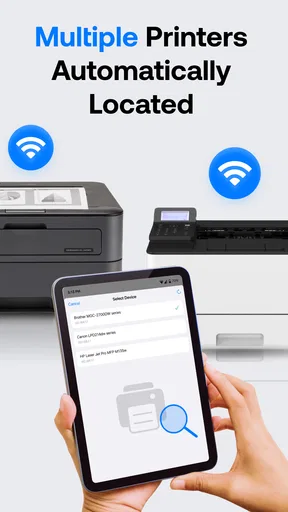
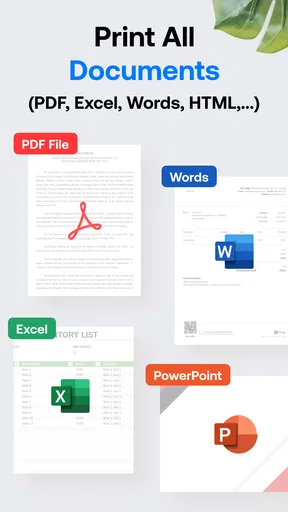
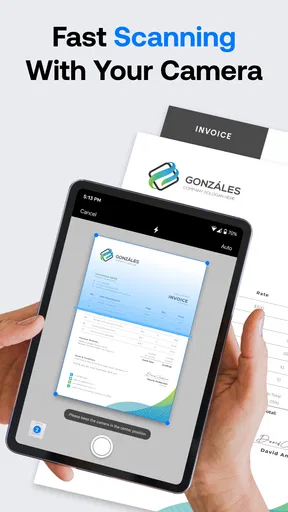
 Analysis by AppCompare
I’m cautious about giving a phone a permanent place in my printing routine: the first successful page is satisfying, but what matters is whether printing still feels simple when the novelty wears off. Smart Print - Air Printer App is a free productivity app from MAPLE LABS CO., LTD, and its appeal is straightforward: it brings document and photo printing into the same device where I already receive and store files. It has a 4.5 average from around 77,000 ratings, with over a million installs, so it is clearly finding an audience. Whether it earns a lasting place depends less on a flashy first session than on how often you print and how well your printer fits your setup.
The first week: useful when a print job appears
The early value is easy to understand. A form arrives by email, a page needs printing before an appointment, or someone asks for a paper copy of a photo. Instead of sending the file to a computer or hunting for a cable, I can start from my phone and check whether the printer is available. For occasional, small jobs, removing those steps is a genuine convenience rather than a novelty for its own sake.
That convenience depends on the printer and connection behaving as expected. A phone-based workflow feels effortless when the printer is already set up and reachable; it feels less magical if I first have to troubleshoot the home network or wake an idle printer. I’d treat the first print as a practical test of the entire route—file, phone, connection, printer—not just a test of the app.
Month-to-month value: convenience has to match your habits
Smart Print is most compelling for people who handle scattered print needs: students printing a handout, a household member producing a return label, or someone keeping a paper copy of a travel document. If those jobs happen regularly, being able to begin on the phone can save enough small interruptions to justify keeping a printing app handy. If you print only once every few months, the built-in options on your device may already be sufficient.
Compared with the usual alternatives, this sits between a printer maker’s own app and a computer-based workflow. A manufacturer app can be a better fit when you want tools tailored to one particular printer, while a computer may offer a more familiar way to inspect complex layouts before sending them. Smart Print’s stronger case is convenience across everyday phone-based tasks, not replacing every printer utility or desktop feature.
A useful habit is to preview a document before sending it, especially when it has several pages, tables, or small text. A file that looks tidy on a phone screen can still waste paper if its page breaks or orientation are wrong. I’d also keep important documents in an easy-to-find location rather than relying on a last-minute search through downloads; the app can simplify the printing step, but it cannot make a disorganized file collection easier to navigate.
Maintenance: the printer still sets the pace
There is little value in a smooth phone interface if the printer is offline, out of paper, or in need of attention. That is the recurring trade-off with any mobile printing app: it removes some computer-related friction, but it does not remove the physical upkeep of the device. For a shared household printer, I’d make sure everyone knows which network it uses and where paper and replacement supplies are kept. Those simple routines can matter more to reliability than opening the app faster.
Worth Reading Before You Choose

EA SPORTS FC Mobile 26 Is a Bigger Football Game, but It Takes Time

Flipboard Shows What News Apps Must Do Beyond the Feed

Switching to Android Auto Means Rethinking Your Driving Routine

Google Calendar Makes a Crowded Week Easier to Manage

Ludo King Makes the Most of the Minutes Between Plans

Baby Panda World Brings Quick Play to Modern Phones, but Its Game Library Feels Busy
When a job does not go through, I would check the basics before repeatedly tapping print: confirm the printer is on and reachable, verify the selected file, and make sure the intended printer is the one chosen. Sending the same job several times while waiting can create duplicate pages if the first request eventually completes. This is especially worth remembering when printing a form or a multi-page document in a hurry.
Where the convenience can wear thin
Mobile printing is not automatically better for every task. Editing a document, checking exact page breaks, or preparing a large batch is often more comfortable on a computer. A phone is excellent for a quick request but less pleasant when I need to inspect fine layout details or compare several files side by side. In those cases, I’d use the device that gives me a clearer view rather than forcing every job through a mobile workflow.
There is also a learning curve if the printer is unfamiliar or the connection is unreliable. “Wireless” does not mean that every printer is instantly discoverable in every environment, and moving between networks can interrupt a routine. I would not choose this app on the assumption that it can fix printer setup problems; its lasting value is in making a working setup more convenient.
First Impressions and Setup
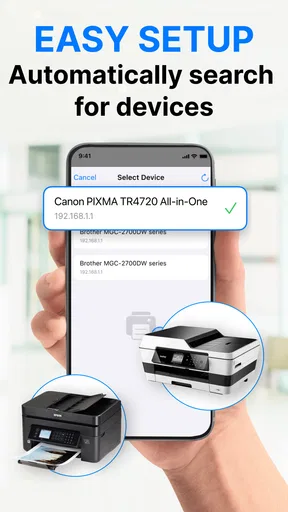
Getting Smart Print - Air Printer App up and running was a breeze. The installation process was straightforward, with the app guiding me through each step. Once installed, it immediately scanned for available printers, and within seconds, it found mine. I didn’t even have to touch my printer settings, which was a pleasant surprise.
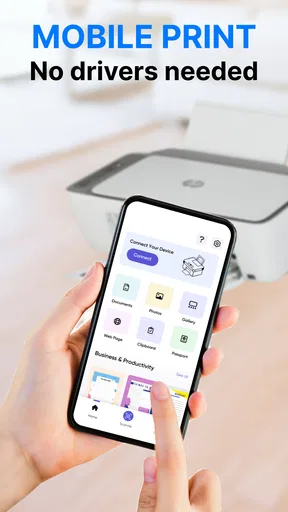
The user interface is clean and intuitive. Everything you need is right at your fingertips without any unnecessary clutter. The main screen provides a clear overview of your recent print jobs, available printers, and options for different types of files you can print from your phone.
Printing Features and Functionality
The app supports a wide range of file types, including PDFs, Word documents, Excel spreadsheets, and even photos. I tested it on a few documents, and the printing process was seamless. The app allows you to customize print settings, such as paper size, color options, and number of copies, right from your phone. It’s like having a mini office in your pocket.
What really wowed me was the AirPrint functionality. With just a tap, I could send a document to the printer without any cables or additional software. It’s perfect for those quick print jobs when you’re running out the door.
Compatibility and Connectivity
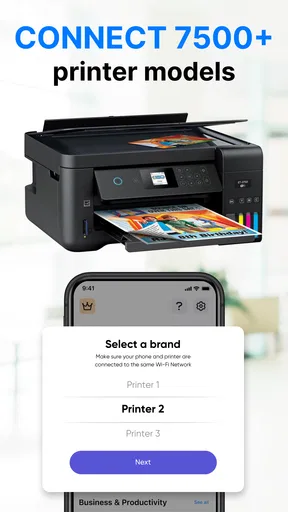
One of the standout features is its compatibility with a wide range of printers. Whether you’re using an HP, Canon, or Epson, the app seems to handle them all effortlessly. I was skeptical at first, but even my older model printer connected without a hitch.
The app supports both Wi-Fi and Bluetooth connections, which is a big plus. I didn’t have to worry about being in the same room as the printer, and the connection remained stable throughout my testing.
User Experience and Performance
In terms of performance, the app was consistently reliable. I didn’t encounter any crashes or bugs, which is often a concern with these types of apps. The print speed was impressive, and the quality of the prints matched what I would get from a desktop setup.
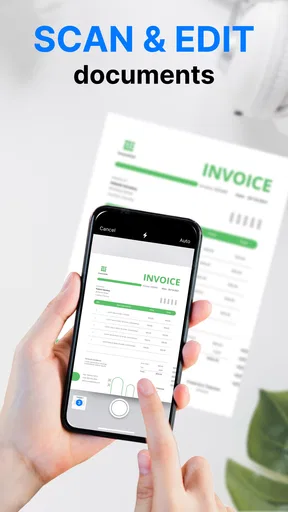
The app also offers some handy extras, like the ability to scan documents directly from your phone and save them as PDFs. It’s a nice touch for those who need to digitize documents on the fly.
Security and Privacy
Security-wise, the app assures users that their data is safe, which is crucial when dealing with personal or sensitive documents. It uses encrypted connections to ensure your information isn’t compromised during the printing process. This added layer of security gives peace of mind, especially for business users.
Final Thoughts
Overall, Smart Print - Air Printer App lives up to its promises. It’s a versatile and reliable tool for anyone needing to print from their mobile device. Whether you’re a student, professional, or just someone who values convenience, this app is a game-changer.
If you’re tired of the hassle of transferring files to a computer just to print, this app is definitely worth checking out. It’s like having a personal assistant in your pocket, ready to handle your printing needs with ease. Give it a try and see how it can streamline your workflow.
Choosing it for the right kind of printing
My most realistic everyday use is a last-minute school or household task: someone sends a PDF, I open it on the phone, choose the nearby printer, check the page and copy settings, then send it before leaving. That is where mobile printing earns its keep. It is also handy for a photo that needs a quick paper copy, though I would check the result rather than assume a phone display guarantees the print will look exactly as expected.
It is a less obvious fit for people who print long reports, carefully formatted spreadsheets, or batches that need close quality control. For those jobs, I prefer a larger screen where I can inspect margins and page breaks before committing paper. A printer’s own companion app may also make more sense if I depend on model-specific controls. The practical choice is not “one app for every printer task,” but the shortest reliable route for the job in front of me.
Small checks that prevent avoidable waste
Before sending a document with multiple pages, I would confirm the paper size and orientation rather than trusting the default. This is a worthwhile pause for forms and spreadsheets, where a wrong fit can cut off a column or leave an awkward blank page. If only one page is needed, check the page selection and copy count carefully; a quick review is easier than sorting out a pile of unwanted sheets afterward.
For photos, I would choose the image deliberately instead of printing the first similar-looking file in the gallery. Phone libraries often contain several versions of the same picture, and a little checking can prevent a duplicate or an outdated crop. These are modest habits, but they make the app more useful over time because they address the paper-and-ink costs that a one-tap workflow can otherwise hide.
What to expect from the free app over time
The app is free to install, but it includes in-app purchases ranging from $0.99 to $99.99 per item. I’d start with the basic workflow and decide whether the app fits my routine before paying for anything. The price range is broad enough that I would inspect any purchase screen carefully and make sure I understand what an item offers before confirming it. Occasional printing may not justify spending beyond the free option; frequent use could make an added convenience worthwhile if it solves a problem I actually encounter.
It is rated for Everyone, runs on Android 8.0 or later, and its current version is 3.3.6. Those details help with the initial decision, but long-term satisfaction still comes down to the phone and printer working together in the places where I need them. I would keep the app only if it makes repeat tasks easier than opening a computer or switching to a printer-specific alternative—not simply because the first connection was pleasantly quick.
Who should keep it close—and who can skip it
I’d recommend trying it if you often receive files on your phone and own a printer you already use reliably. It suits a student printing occasional course material, a family sharing quick household jobs, or anyone who wants to avoid moving a simple file to a computer. MAPLE LABS CO., LTD has built an app aimed at that practical gap between having a document on hand and getting a paper copy.
I would skip it if printing is rare, your printer is already well served by a manufacturer app, or your work requires detailed page preparation and repeatable batch control. The app has 2.3K reviews, but no aggregate rating can tell me whether it will suit a particular printer, network, or routine. The fairest test is a low-stakes page: check discovery, preview the settings, and see whether the process is actually easier in your home or office.
The lasting-value test
After the first week, I would judge this app by how often it removes a real detour. Does it help me print a document that would otherwise wait until I reach a computer? Can I find the right file and printer without turning a simple job into troubleshooting? If the answers stay yes, it has recurring value. If I repeatedly have to change networks, retry jobs, or switch to another tool for ordinary printing, the convenience fades quickly.
My view is that this is best treated as a useful route to the printer, not as a replacement for printer upkeep, careful document checking, or a full desktop workflow. For the right user, that narrower promise is enough: fewer steps for everyday phone-based jobs and a straightforward way to keep paper tasks moving. For everyone else, the built-in print option or a dedicated printer app may already do the job with less to maintain.
Pros
- Easy setup with clear instructions.
- Supports multiple file formats.
- Seamless integration with cloud services.
- Compatible with most wireless printers.
- Fast and reliable printing performance.
Cons
- Occasional connectivity issues.
- Limited editing features.
- No support for older printer models.
- Subscription required for advanced features.
- Ads in the free version.
FAQs for Smart Print - Air Printer App
What is Smart Print - Air Printer App and how does it work?
Smart Print - Air Printer App is a mobile application designed to enable wireless printing from your smartphone or tablet. It connects seamlessly with various types of printers, allowing you to print documents, photos, and more directly from your device. The app utilizes Wi-Fi or Bluetooth to communicate with compatible printers, making the printing process convenient and efficient.
Is Smart Print compatible with all printers?
Smart Print - Air Printer App is compatible with a wide range of printers that support wireless connectivity, including popular brands like HP, Canon, Epson, and Brother. However, it's important to check if your specific printer model is supported by the app. Compatibility information is usually available on the app's official website or within the app itself.
What file formats can I print using Smart Print?
Smart Print - Air Printer App supports a variety of file formats, including PDFs, Microsoft Office documents (Word, Excel, PowerPoint), images (JPEG, PNG), and more. This ensures that users can print almost any type of document or photo directly from their mobile devices without needing to convert files to a different format.
Does Smart Print offer any customization options for printing?
Yes, Smart Print - Air Printer App offers several customization options to enhance your printing experience. Users can adjust print quality, paper size, orientation, and color settings. Additionally, the app may provide options for duplex printing and multiple copies, allowing for a tailored printing process to suit individual needs.
Is Smart Print free to use, or does it require a subscription?
Smart Print - Air Printer App typically offers a basic version that is free to use, which includes essential printing features. However, there may be in-app purchases or subscription options available for advanced features such as higher-quality prints, additional file format support, or enhanced customer support. Users should review the app's pricing details before downloading.


